If you've spent any time in the worship tech world, you've almost certainly heard the name Ableton Live come up in conversations about multitracks, pads, or production. It's the software that shows up in the rig of most churches running advanced production — and also the one that intimidates newcomers the most. The interface looks like nothing you've seen before: no horizontal timeline, no play button where you'd expect it, and buttons named differently from any other software.
But once you understand the logic behind the program, everything clicks. This guide takes you from zero — which version you need, how the interface is laid out, how to configure your outputs so the click never hits the room, and how to build your first set ready for Sunday.
Why Ableton and not another app
The fair question is: if there are already apps built specifically for worship like Playback or Prime, why learn a full DAW? The answer is control.
With Ableton you can do things no worship-specific app allows: change key and tempo live without re-exporting stems, apply real-time effects on any track, send MIDI to external keyboards and modules, create volume automations for smooth transitions between sections, and manage an entire service set from a single session. You can also use the same software to produce music, record rehearsals, or create your own pads — no need to learn three separate programs.
The real downside is the learning curve. Ableton wasn't designed exclusively for worship — it's a production DAW that the worship community adapted over time. That means you'll need to configure it yourself. This guide gives you the foundation to do that.
Which version you need
Ableton Live comes in three editions: Intro, Standard, and Suite. For live worship, the most important limitation of Intro is the audio track count: only 16. If your set has many stems per song, that can run short. Standard removes that limit and adds a full Arrangement View — the recommended option for most churches.
The Suite edition includes a massive instrument and effects library — useful if you're producing music inside Ableton, but unnecessary if your focus is only running multitracks live. Ableton offers a free 90-day trial of the Suite edition — more than enough time to learn before deciding which edition to buy.
The interface: Session View and Arrangement View
The first thing that disorients anyone new to Ableton is that the program has two completely different views, accessible with the shortcuts Ctrl+Tab (PC) or Cmd+Tab (Mac):
Session View
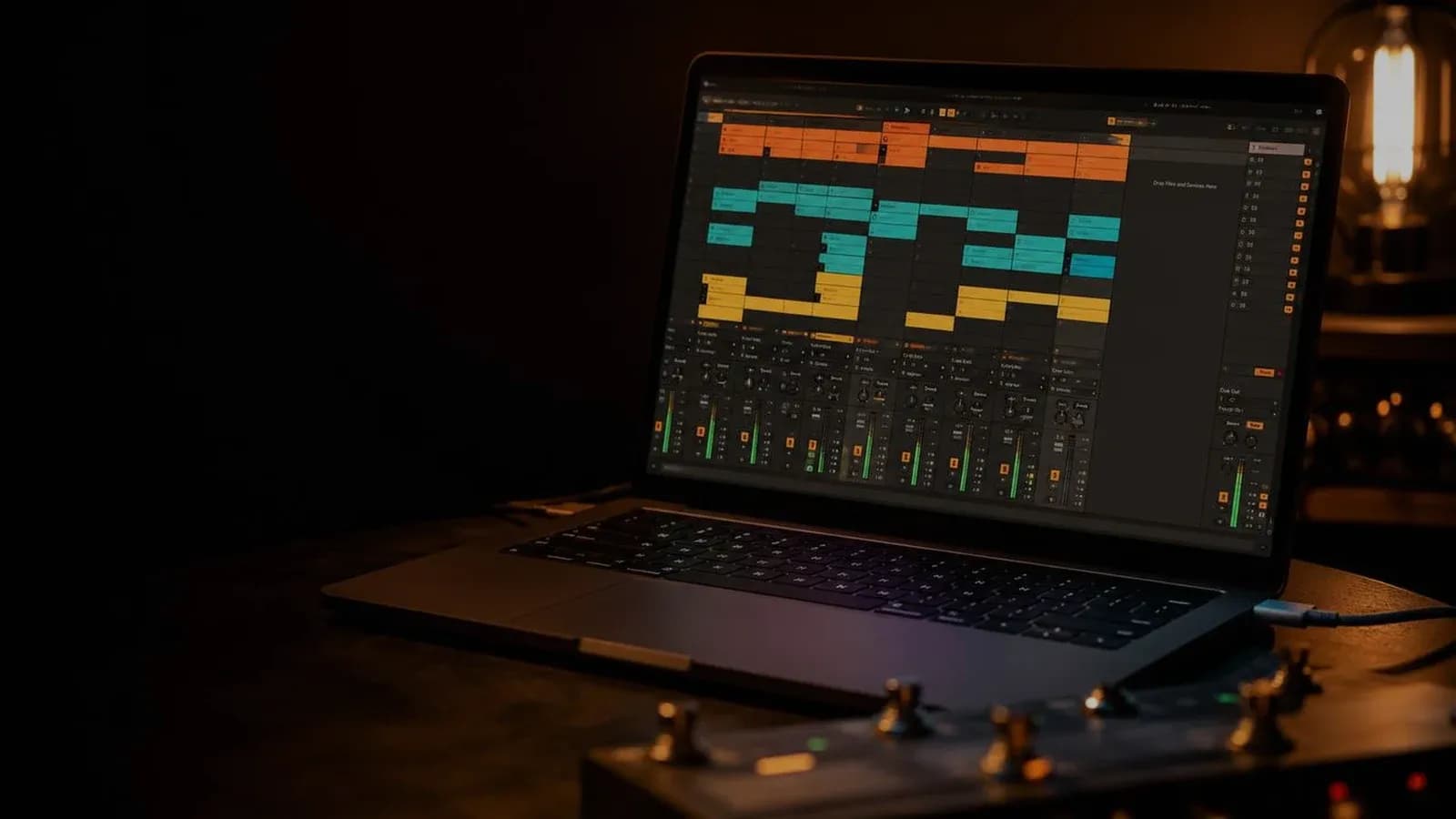
This is the vertical view — the one that looks like a spreadsheet with colored blocks. Each column is an audio or MIDI track, and each block in that column is a clip — an audio fragment you can trigger whenever you want. The horizontal rows are scenes: launching a scene fires all the clips in that row simultaneously.
For worship, Session View is ideal for managing song structure: one scene per section (intro, verse, pre-chorus, chorus, bridge, outro). You launch the right scene with a MIDI controller button and all the stems for that section start in sync. It's also the most useful view for improvising when the service runs long — you can loop any section without losing the tempo.
Arrangement View
This is the linear view — the horizontal timeline you'll recognize if you've used GarageBand or any other DAW. Here you build the full song from start to finish: import each stem, align them on the timeline, and define exactly when each section starts and ends.
The advantage of Arrangement View is predictability: you know exactly what will play on every bar. You can add locators (markers) at specific points — intro, verse 1, chorus, bridge — and navigate between them with keyboard shortcuts or a mapped MIDI controller. If the service runs as planned, Arrangement View is simpler to manage live. If you need flexibility to improvise, Session View wins.
How to organize your tracks for worship
A well-organized Ableton session for worship typically follows this track structure, grouped by function:
- CLICK — Mono track with the click track. This track routes ONLY to the band's in-ears, never to the PA.
- GUIDE — Mono or stereo track with the vocal guide (bar count, section names). Also in-ears only.
- PERCUSSION — Kick, snare, hi-hat, additional percussion. Independent group to blend with the live drummer.
- SUB BASS — Low frequencies from the pre-recorded bass. Only if you don't have a live bassist.
- KEYS / PADS — Keyboards, synths, atmosphere pads. Stereo L+R.
- STRINGS / BRASS — Strings, horns. Stereo.
- BGVs — Pre-recorded background vocals. Adjust volume based on how many live voices you have on stage.
Use color groups to visually separate what goes to the PA from what goes only to the in-ears. In a service, you need to identify any track in milliseconds — color saves you when you're under pressure.
Looking for multitracks for your team? Explore them on Recursoiglesia.
Browse multitracks →Configuring outputs: the most critical step
The reason Ableton requires an audio interface with multiple outputs is precisely this: you need to send different signals to different destinations simultaneously. The basic output configuration for worship:
- Outputs 1–2 (Master) → FOH console: stereo mix of all musical stems, no click or guides.
- Output 3 (mono) → in-ear system: click. Band only, never the PA.
- Output 4 (mono) → in-ear system: vocal guide. Same as the click.
- Outputs 5–6, 7–8 (optional) → FOH console separately: individual stems for the sound engineer. Allows mixing percussion, bass, keys and BGVs individually at the board.
To enable outputs in Ableton: go to Preferences → Audio → Output Config and activate all the outputs you need. Then, on each track, enable the I/O button in the track view to see routing options and assign each track to its corresponding output.
MIDI controllers: running the set without touching the mouse
In a worship service, having to use a mouse to advance between sections is a serious problem. The goal is to have your hands free — or at least your feet. That's why using a MIDI controller is almost mandatory once you bring Ableton on stage.
The most popular in the worship world is the Looptimus by Loop Community — a foot pedal with large buttons, designed specifically for church musicians. With it you can advance between scenes, loop sections, fire pads, and mute tracks without putting down your instrument. It comes in a wired USB version and the Looptimus+ wireless version via Bluetooth MIDI.
Other options for those who also produce or need more scene control: Ableton Push (Ableton's native controller, total integration but bulky for stage), Akai APC Mini (compact, affordable, allows visual clip and scene launching), or any MIDI keyboard with mappable transport buttons.
To map a controller in Ableton: enable MIDI Map Mode with Cmd+M (Mac) or Ctrl+M (PC), click the button you want to map (for example, a scene launch button), then press the physical button on your controller you want to assign. Ableton detects it automatically.
How to build your first set step by step
With the theory clear, here's the practical workflow for putting together a three-song set in Ableton from scratch:
- Download your stems in WAV or AIFF format. Make sure all files for a song start at the same point in the bar (beat 1, bar 1) — this guarantees that when you launch them together, they stay in sync.
- Create a new audio track for each stem. Drag the WAV file into that track's clip slot in Session View. Name them clearly: CLICK, GUIDE, KICK, PERC, KEYS L, KEYS R, BGV L, BGV R.
- Group tracks by function using Ctrl+G (PC) or Cmd+G (Mac): a MONITOR group (click + guide), a PA group (everything else). This simplifies routing and global volume control.
- Set the session tempo to the song's BPM. If your set has songs with different BPMs, assign the tempo to each scene individually from the scene panel in Session View.
- Assign outputs: MONITOR group → output 3-4 (in-ears), PA group → output 1-2 (FOH). Verify routing in silence before rehearsal.
- Create one scene per musical section. Duplicate the necessary clips into the corresponding rows. Adjust Quantization to 1 bar so clips always launch at the start of the next bar, never mid-phrase.
- Test everything with the full team and in-ears on before the service. The first time a musician hears their correct monitor mix through Ableton is the moment the system becomes an ally, not an obstacle.
Templates: don't start from scratch every week
One of the best practices for teams already using Ableton regularly is working from a template — a base session with all tracks created, groups configured, outputs assigned, and MIDI mapping ready. Each week you just import the new stems and adjust the tempo per song.
You can save your session as the default startup template via File → Save As Default Set. That way, every time you open Ableton, your base configuration is already in place. Free worship-ready templates are also available on platforms like Worship Start and MxU — a great starting point before building your own.
Common mistakes when starting with Ableton in worship
- Not checking interface latency. An interface with slow drivers or too high a buffer size introduces latency that desyncs the click from real tempo. On Mac, Core Audio is very stable; on PC, install ASIO drivers (like ASIO4ALL if your interface doesn't have its own). Set buffer size to 256 samples — low enough for minimal latency without excessive CPU load.
- Stems without initial sync. If your WAV files don't all start at the same point, launching the scene will leave them misaligned. Open each stem in an audio editor (Ableton itself works) and confirm they all start at beat 1.
- Using Warp Mode unnecessarily. Ableton's Warping adjusts the tempo of any audio in real time. For pre-recorded multitracks with their own defined tempo, Warp Mode should be off or set to Complex Pro to avoid audio distortion. Only enable it if you're creatively adjusting tempo.
- No backup plan. A software crash, a failing USB cable, or an automatic update can take down your system. Always identify which songs in the set the band can play without multitracks.
- Learning Ableton during the service. The first time you use Ableton in a real service, you should already know the session by heart. Practice with the team through at least two full rehearsals before going live.
What laptop do you need?
Ableton is resource-intensive, especially with large sessions. For live worship, the minimum recommendation is:
- Mac: any MacBook Air or MacBook Pro with M1 chip or newer. Apple's M-series chips handle Ableton with remarkable efficiency and virtually no thermal throttling.
- PC: Intel Core i5 8th gen or newer (or AMD Ryzen equivalent), minimum 8 GB RAM (16 GB recommended), SSD required for fast audio file reading.
- On both: disable automatic OS updates before every service, turn off power-saving mode, and keep at least 20% free disk space so the audio system runs without interruptions.
Explore more resources to elevate your worship at recursoiglesia.com, where you'll find multitracks, charts, templates and more. And follow us so you never miss a release: on Instagram and Facebook as @recursoiglesia.